1. INAIR OS Overview
The INAIR Developer Platform is designed to empower developers, creators, and partners to build the next generation of spatial computing applications.
Powered by INAIR OS, the INAIR Pod spatial computing device, and a growing ecosystem of multi-brand AR glasses, developers can create cross-device, multi-window, and immersive spatial experiences that go beyond the limitations of traditional screens.
Unlike conventional display-based platforms, INAIR provides a spatial operating environment where applications are no longer restricted to a single screen. Instead, content can be distributed across multiple virtual windows and positioned dynamically within a 3D spatial workspace.
INAIR is not just a hardware device—it is a cross-terminal spatial computing platform that allows developers to build applications capable of running across different AR display devices while maintaining consistent interaction and spatial behaviors through INAIR OS.
Through the INAIR platform, developers can:
- Build spatial multi-window applications that operate within a 3D workspace
- Deliver immersive media and productivity experiences using AR glasses
- Develop cross-device spatial applications compatible with multiple AR display brands
- Integrate AI-powered spatial features such as real-time 2D-to-3D transformation and spatial media rendering
By abstracting hardware differences and providing a unified spatial environment, INAIR enables developers to focus on creating next-generation spatial user experiences rather than managing device-specific implementations.
INAIR OS serves as the foundation of this ecosystem, providing:
- A spatial window system capable of running multiple applications simultaneously
- A device-agnostic display framework compatible with multiple AR glasses
- Spatial interaction capabilities for positioning, resizing, and managing windows in 3D space
- Built-in support for immersive media and AI-enhanced spatial rendering
Together, INAIR OS and the INAIR Pod form a flexible spatial computing platform that allows developers to design applications for the emerging era of post-screen computing.
Core Capabilities
The INAIR platform provides a set of foundational capabilities that enable developers to build powerful spatial computing applications across multiple AR devices.
Spatial Multi-Window System
INAIR OS includes a native spatial window management system designed specifically for AR environments. Applications are not restricted to a single display surface and can instead exist as independent windows within a 3D spatial workspace.
Developers can create experiences that support:
- Multiple concurrent application windows
- Floating windows positioned in 3D space
- Spatial anchoring and positioning
- Flexible window layouts and resizing
This architecture enables users to organize content freely in a multi-screen spatial environment, significantly improving productivity and immersion compared to traditional single-screen interfaces.
Cross-Device AR Ecosystem
The INAIR platform is designed with device compatibility in mind, allowing applications to run across multiple AR display devices without requiring extensive device-specific development.
By building on INAIR OS, developers can deploy applications compatible with AR glasses from different manufacturers, including:
- Xreal AR glasses
- Viture AR glasses
- RayNeo AR glasses
This write-once, adapt-across-devices approach reduces development complexity and helps developers reach a broader spatial computing ecosystem.
Low-Latency Streaming Architecture
INAIR OS supports a high-performance streaming architecture designed for demanding workloads such as remote computing and immersive media.
The platform enables:
- Cloud rendering pipelines
- Remote desktop environments
- Game streaming experiences
- Cross-network device streaming
Optimized low-latency transmission ensures smooth interaction and responsive visual output even when rendering workloads are executed remotely.
Integrated AI System Capabilities
INAIR OS integrates native AI capabilities into the platform, allowing developers to build intelligent spatial applications without implementing AI infrastructure from scratch.
Built-in capabilities include:
- AI assistant integration
- Voice interaction and speech recognition
- Semantic understanding
- Workflow automation
These capabilities allow developers to design applications that combine spatial computing and AI-driven interaction.
Multi-Modal Input System
INAIR OS supports multiple input methods to accommodate different device configurations and interaction scenarios.
Supported input methods include:
- Head-tracking interaction
- External controllers
- Bluetooth peripherals (keyboard, mouse, etc.)
- Other external input devices
This flexible input system enables developers to design applications optimized for both immersive interaction and productivity-focused workflows.
Hardware Overview
INAIR Pod Specifications
The INAIR Pod is the core computing device of the INAIR spatial computing platform. It runs INAIR OS and provides the processing, storage, and connectivity required to power spatial applications and AR display devices.
Below are the primary hardware specifications of the INAIR Pod.
| Specification | Details |
|---|---|
| Weight | 158 g |
| Dimensions | 130 mm (L) × 55 mm (W) × 18 mm (H) |
| Battery | 5000 mAh high-density battery |
| Battery Life | Up to 4+ hours of active usage |
| Standby Time | Up to 30 days |
| Processor | Qualcomm Snapdragon 7-series octa-core processor |
| Memory | 8 GB RAM |
| Storage | 128 GB internal storage |
| Display | Integrated touch screen |
INAIR Pod Third-Party Glasses Compatibility Comparison
| INAIR Pod + | INAIR 2 Pro | Viture Luma Ultra | Viture Pro / Luma / Luma Pro / Luma Cyber | Viture One / One Lite | Viture Beast | Xreal Air / Air 2 / Air 2 Pro / Air 2 Ultra | Xreal one & one Pro & 1S | Rayneo Air 2s / Air 3s / Air 3s Pro / Air 4 / Air 4 Pro | 3D Projector & DLP-Link Compatible 3D Projector |
|---|---|---|---|---|---|---|---|---|---|
| Spatial Window Interaction | |||||||||
| Multi-Window Mode | Supported | Supported | Supported | Supported (Limited 1920 × 1080 px resolution) | In Development | Supported | Supported (Limited 3840 × 1080 px resolution) | Supported (Limited 1920 × 1080 px resolution) | Supports (Fixed full screen, up to 4K display) |
| Single-Window Mode | In Development (Coming soon in March) | Supported | Supported | Supported | In Development | Supported | Supported | Supported | Supported |
| 3Dof Floating Mode | Supported | In Development | Supported | In Development | In Development | Supported | Glasses with built-in 3DoF | Supported | Hardware not supported |
| 6Dof | Hardware not supported | Supported | Hardware not supported | Hardware not Supported | In Development | Hardware not supported | In Development | Hardware not Supported | Hardware not supported |
| Follow Mode | Supported | In Development | Supported | In Development | In Development | Supported | Glasses support 「Gimbal Mode」 | Supported | Hardware not supported |
| Depth Adjustment | Freely adjustable range: 1.4 m – 10 m | Supported | Supported | In Development | In Development | Freely adjustable range: 1.4 m – 10 m | Glasses button switch (OSD Menu → Screen Distance) | Freely adjustable range: 1.4 m – 10 m | Fixed Fullscreen |
| Window Size Adjustment | Supported | Supported | Supported | In Development | In Development | Supported | Supported | Supported | Fixed Fullscreen |
| Window landscape/portrait Switching | Supported | Supported | Supported | Supported | In Development | Supported | Supported | Supported | Supported |
| Ecosystem Content | |||||||||
| Google Play Store Support | Supported | Supported | Supported | Supported | In Development | Supported | Supported | Supported | Supported |
| INAIR SPACE Wireless PC Streaming | Supported | Supported | Supported | Supported | In Development | Supported | Supported | Supported | Supported |
| INAIR Mobile App Wireless Connection | Supported | Supported | Supported | Supported | In Development | Supported | Supported | Supported | Supported |
| AI Capabilities | |||||||||
| INAIR AI Real-Time 2D-to-3D Conversion | Supported | Supported | Supported | Supported | In Development | Supported | Supported | Supported | Supported |
| Cloud-based Video-to-3D Conversion | Supported | Supported | Supported | Supported | In Development | Supported | Supported | Supported | Supported |
| AI Voice Command Control | Supported | Supports | Supports (Pod Microphone) | Supported (Pod Microphone) | In Development | Supported | Supported | Supported | Supports (Pod Microphone) |
| AI Large-Model Multimodal Interaction | Supported | Supported | Supported | Supported | In Development | Supported | Supported | Supported | Supported |
| AI Field-of-View Awareness | Supported | Supported | Supported | Supported | In Development | Supported | Supported | Supported | Supported |
| System Operations | |||||||||
| Immersive Adjustment | Supported | In Development | In Development | In Development | In Development | Not Supported | Supported | Not Supported | Hardware Not Supported |
| Pod Pointing Control | Supported | Supported | Supported | Supported | In Development | Supported | Supported | Supported | Supported |
| Screenshot & Screen Recording | Supported | Supported ( AR Mixed Reality Recording) | Supported ( Luma Pro supports AR mixed reality recording) | Supported | In Development | Supported | Supported | Supported | Supported |
| Visual Focus Area Control | Supported | Supported | Supported | Supported | In Development | Supported | Supported | Supported | Supported |
| INAIR OS In-System Volume & Brightness Control | Supported | In Development | Supported | Supported | In Development | Not Supported | Not Supported | Not Supported | Not Supported |
| External Bluetooth Keyboard & Mouse Support(INAIR Touchboard: auto-detection, custom multi-touch & button mapping) | Supported | Supported | Supported | Supported | In Development | Supported | Supported | Supported | Supported |
| Game Controller & Other Bluetooth Peripheral Support | Supported | Supported | Supported | Supported | In Development | Supported | Supported | Supported | Supported |
| Fingerprint Lock | Supported | Supported | Supported | Supported | In Development | Supported | Supported | Supported | Supported |
2. Getting Started with Android SDK
1. INAIR Andorid SDK Overview
This document is intended to guide developers in quickly integrating the INAIR Glasses SDK to obtain head-tracking IMU data from the glasses, enabling communication with INAIR glasses and access to their related features.
Developers can use this SDK to build applications based on the INAIR AR glasses platform.
Version History
| Version History | Release Date | Major Updates |
|---|---|---|
| 1.0.0 | 2026/04/27 | Initial version, including service connection/disconnection and IMU data retrieval |
SDK Introduction
The INAIR IMU SDK provides a complete set of interfaces for interacting with the glasses, including:
- Retrieving IMU data from the glasses
- Setting or controlling head-tracking (follow) behavior
- Enabling applications to interact with the INAIR AR glasses hardware
Scope
This SDK is intended for developers building applications for AR glasses.
Developers are expected to have basic experience with:
- Android application development
2. Environment Setup
Android Development
- JDK 1.8 or later
- Android Studio 2023.2.1 or later
- Android SDK API Level 34 or later
Hardware Requirements
- AR Glasses: INAIR glasses compatible with this SDK
- Required firmware version: INAIR OS 3.5 or later
SDK Installation
- SDK Package
- Demo Project ( The demo project can be imported directly into Android Studio using Import Module. )
3. Quick Start
Project Configuration (Android)
- Open Android Studio and create a new Android project, or open an existing project.
- Copy the file HeadImuLib-release.aar from the SDK `libs` directory to the project's:
- Add the dependency to your build.gradle file:
dependencies {implementation files('libs/HeadImuLib-release.aar')// 其他依赖...}- Call the relevant SDK methods inside MainActivity to start using the IMU data.
//注册Imu数据监听
HeadImuHelper.getInstance().setCallback(new HeadImuHelper.ImuDataCallback() {
    @Override
    public void onImuDataCallback(int followstate, float[] data) {
        //Log.i(TAG, "followstate is " + followstate + "  data is [" + data[0] + "," + data[1] + "," + data[2] + "," + data[3] + "]");
        runOnUiThread(new Runnable() {
            @Override
            public void run() {
                //data是length为7的float数组,前四位是头戴imu数据的四元数表示,后三位是头戴imu数据的欧拉角表示
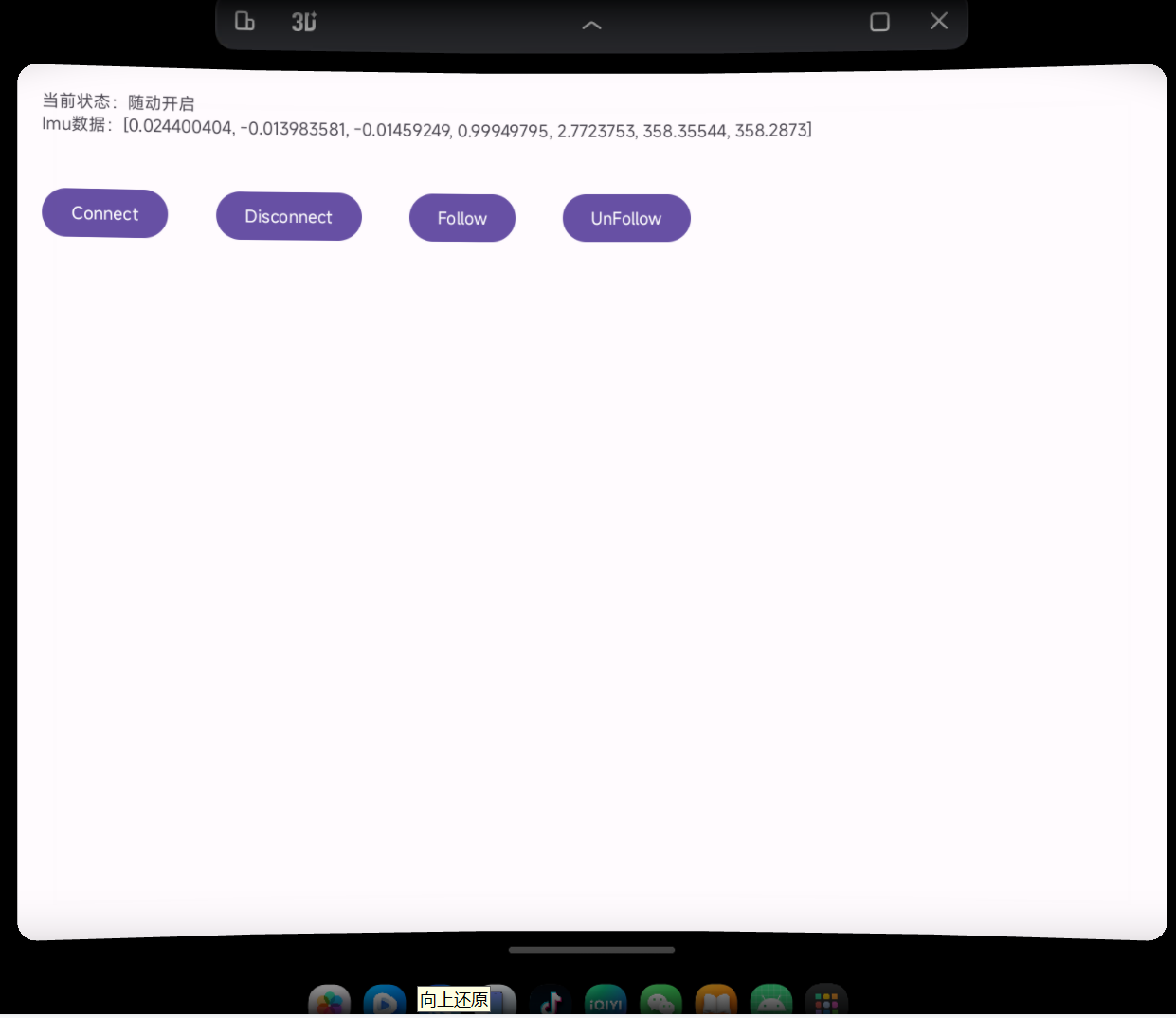
                textView.setText("当前状态:随动" + (followstate == 0 ? "关闭" : "开启") + "   Imu数据:" + Arrays.toString(data));
            }
        });
    }
});
//连接服务
HeadImuHelper.getInstance().connectService(getApplicationContext());
//断开服务
HeadImuHelper.getInstance().disconnectService(getApplicationContext());
//开启随动,仅全屏启动应用时生效
HeadImuHelper.getInstance().setFollowState();
//关闭随动,仅全屏启动应用时生效
HeadImuHelper.getInstance().setUnFollowState();
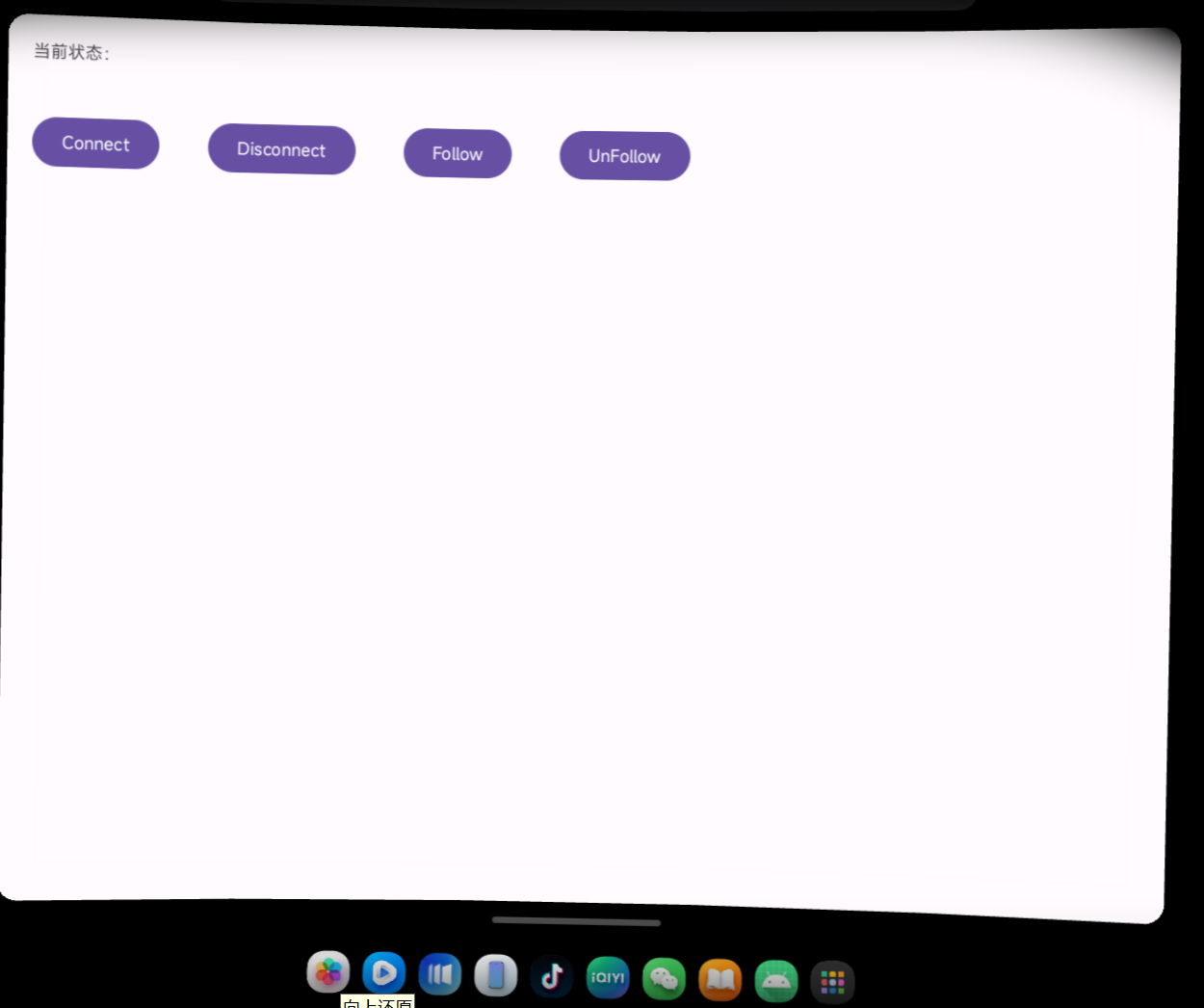
Application Runtime Screenshots
1. Application Running
2. IMU Data Acquisition
4. Core Features
Retrieve Glasses IMU Data and Follow State
The SDK provides APIs to access the IMU data and head-tracking state of the INAIR glasses.
Supported capabilities include:
- Retrieve the current head-following (tracking) status of the glasses
- Retrieve IMU data from the glasses
The returned IMU data is a float array representing the quaternion values of the glasses' orientation:
x, y, z, w
These values describe the current spatial orientation of the glasses.
Service Connection Management
The SDK allows applications to manage the connection to the glasses service.
Supported operations include:
- Connect to the glasses service
- Disconnect from the glasses service
5. API Reference
HeadImuHelper
HeadImuHelper是一个单例类,主要负责与IMU service建立连接和断开连接,并通过回调获取头戴设备imu数据。HeadImuHelper是单例模式,通过 Instance 属性全局访问。
Public Properties
public static HeadImuHelper Instance;
- Description: Singleton instance of `HeadImuHelper`, used for global access.
Public Methods
public static HeadImuHelper getInstance();
- Description: Returns the singleton instance of `HeadImuHelper`.
public void connectService(Context ctx);
- Parameters:
- `ctx (Context)` — Android context
- Description: Establishes a connection to the glasses service.
public void disconnectService(Context ctx);
- Parameters:
- `ctx (Context)` — Android context
- Description: Disconnects from the glasses service.
public void setFollowState();
- Description: Sets the glasses to Follow Mode (head-following enabled).
public void setUnFollowState();
- Description: Sets the glasses to Hover Mode (head-following disabled, spatial anchoring).
public void setCallback(ImuDataCallback callback);
- Parameters:
- `callback (ImuDataCallback)` — callback for receiving IMU data
- Description: Registers a callback to receive IMU data from the glasses.
HeadImuHelper.ImuDataCallback
`ImuDataCallback` is an interface used to receive IMU data and device state updates from the glasses.
Public Method
void onImuDataCallback(int followState, float[] data);
- Parameters:
- `followState (int)`
- `1` — Follow Mode
- `0` — Hover Mode
- `data (float[])`
- Length: 7
- First 4 values: Quaternion (x, y, z, w) representing orientation
- Last 3 values: Euler angles representing rotation
- Description: Callback method triggered when IMU data is updated. Provides both the device orientation data and the current follow/hover state.
3. Getting Started with Unity SDK
Inair Unity SDK Overview
The INAIR SDK is the official development toolkit designed for building applications on the INAIR spatial computing platform.
It provides developers with the necessary APIs and system interfaces to integrate spatial computing capabilities into their applications and communicate directly with the INAIR system environment, including the INAIR Pod and connected AR display devices.
Using the INAIR SDK, developers can create applications that leverage the spatial computing capabilities of INAIR OS, including window management, device communication, and spatial interaction features.
The SDK is designed for developers with experience in:
- Unity-based AR application development
- Android application development
Version History
| Version | Release Date | Major Upadates | Link |
|---|---|---|---|
| 1.0.0 | 2026-04-08 | Support for Multiple Display Devices Compatible with various display devices, including third-party AR glasses, TVs, projectors, and other external displays. Glasses Pose Data Access Provides access to glasses orientation (pose) data, with support for configuring Follow Mode and Hover Mode. Pod Device Pose Data Access Allows applications to retrieve INAIR Pod device pose data, enabling developers to implement custom logic based on device orientation and related events. Multiple Input Methods Supports input events from the Pod touchscreen, Bluetooth keyboards, and Bluetooth mice. |
Inair_UnitySdk_v1.0.0_release.zip |
INAIR Unity SDK
Development Environment Setup
Android Environment
- JDK: Version 1.8 or later
- Android Studio: Version 2023.2.1 or later
- Android SDK: API Level 34 or higher
Unity Environment
- Unity Version: Recommended 2022.3.x or later
- Example used in this guide: 2022.3.24f1
- Android Build Support must be installed
- Recommended installation method: Unity Hub
Hardware Requirements
AR Glasses:
INAIR glasses compatible with this SDK
Computing Device:
INAIR Pod (an Android device running INAIR OS version 3.5 or later)
Project Setup
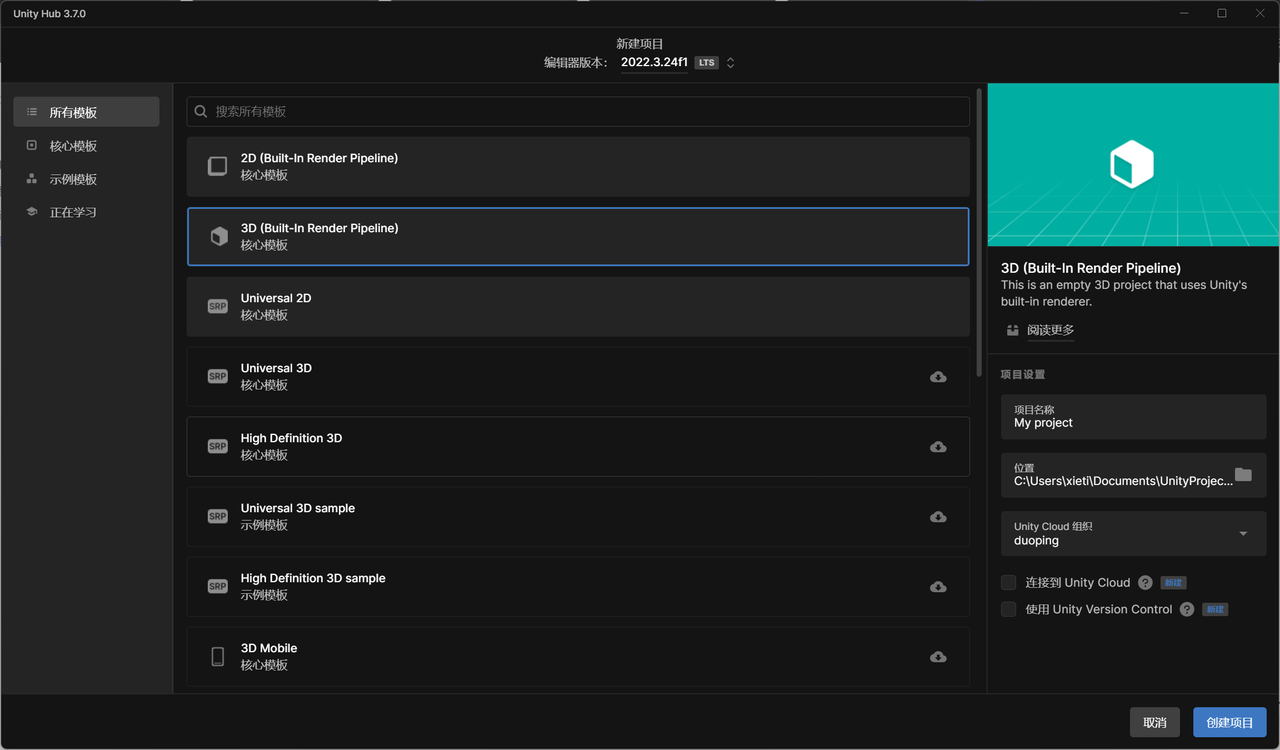
How to Create a Unity Project
Open Unity Hub and create a new project using the "3D (Built-in Render Pipeline)" template.
How to Switch to the Android Development Environment
In Build Settings, select the Android platform.
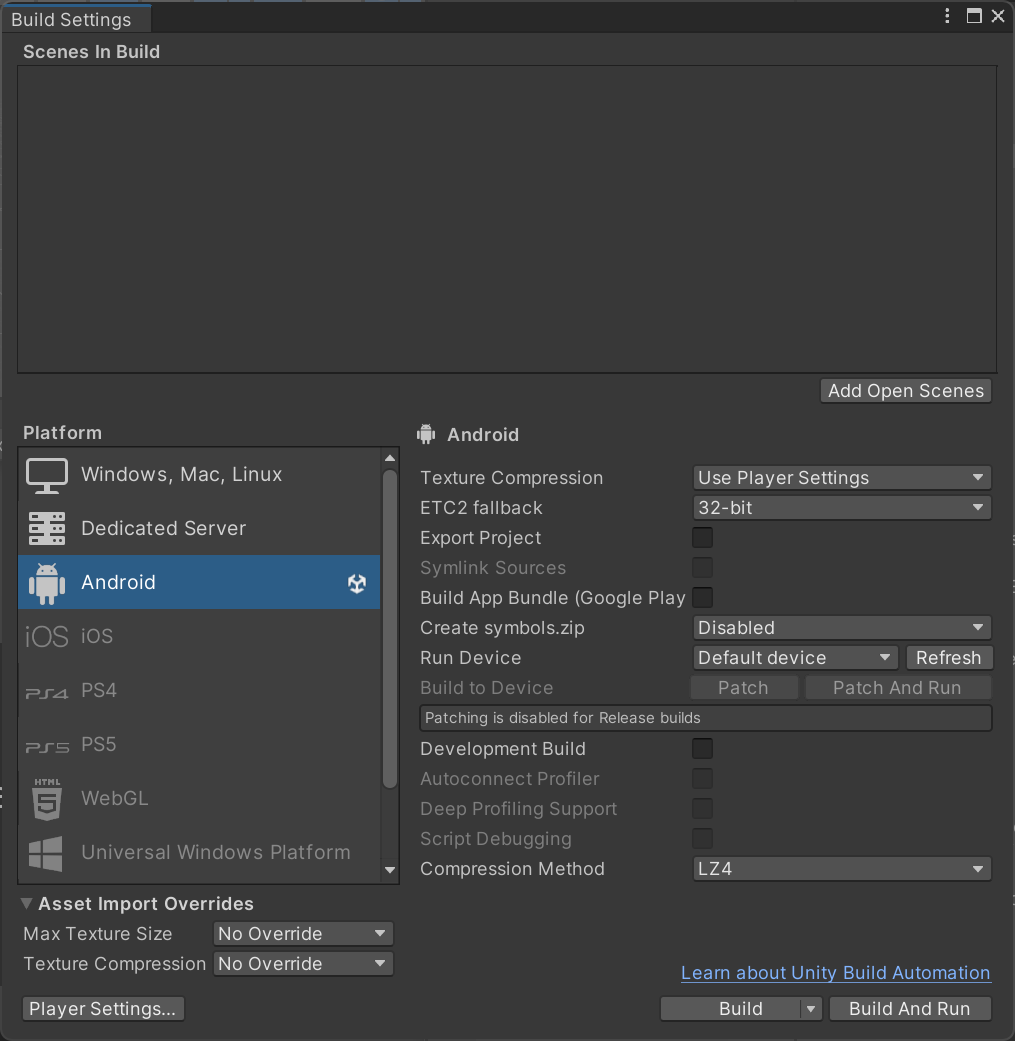
Switch to the Android Development Environment
How to Import the SDK
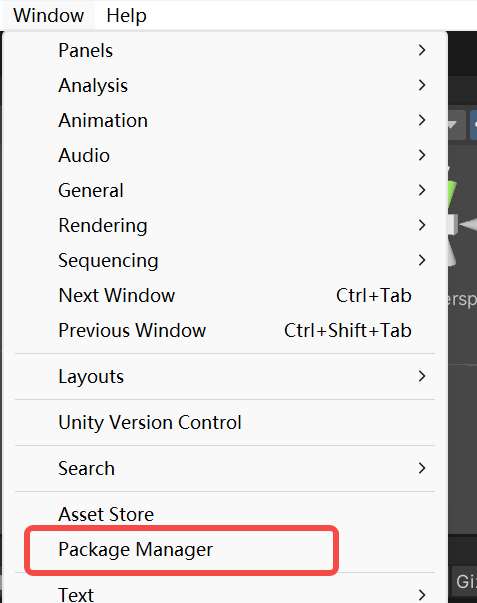
Open Window > Package Manager from the Unity menu. *(Figure 3)*
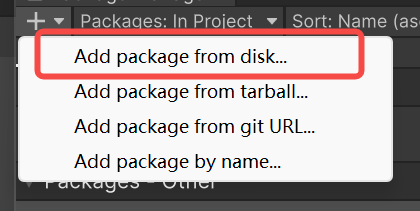
Click + > Add package from disk. *(Figure 4)*
Import the following files:
- `package.json` located in the Inair Unity SDK directory
- `package.json` located in the com.duoping.xr.sdk directory
Manifest Setup
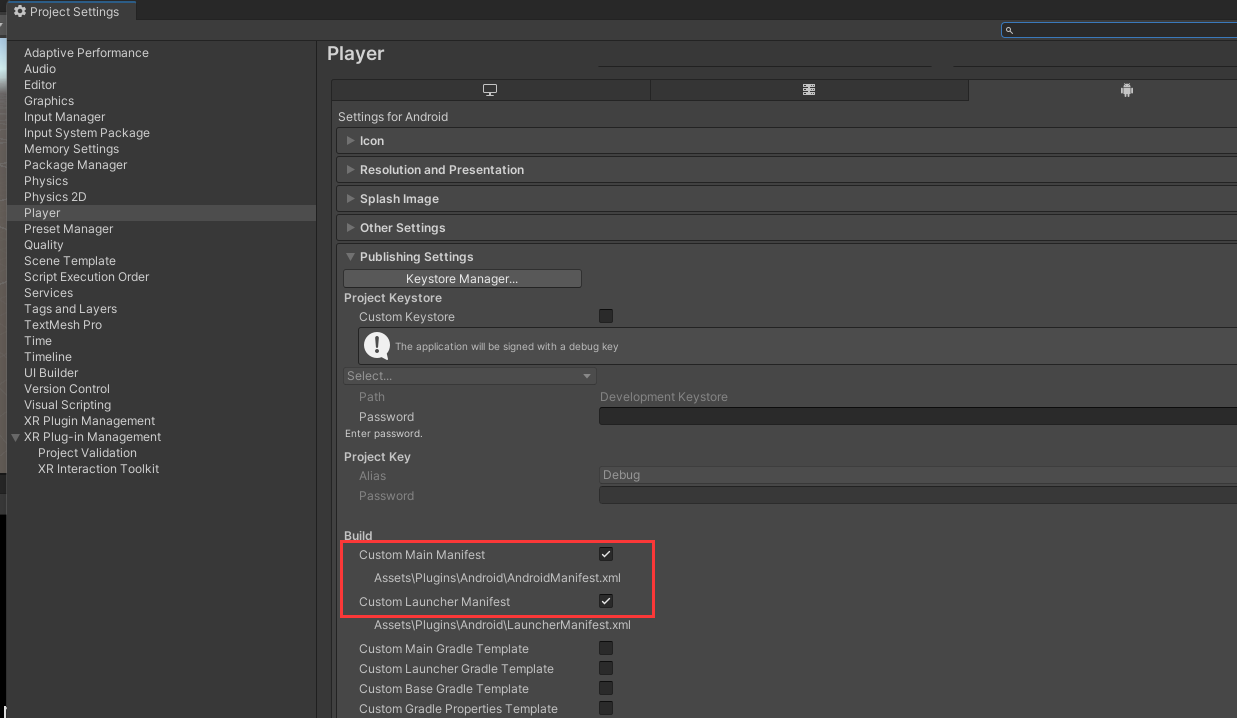
In Project Settings → Player → Publishing Settings, enable Custom Main Manifest and Custom Launcher Manifest. *(Figure 5)*
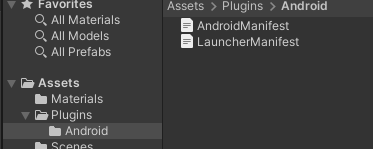
Locate the generated manifest files in the Plugins/Android directory. *(Figure 6)*
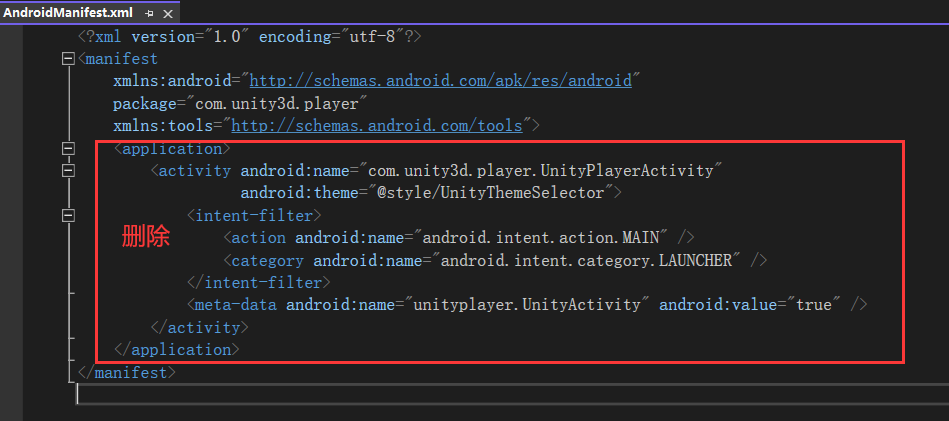
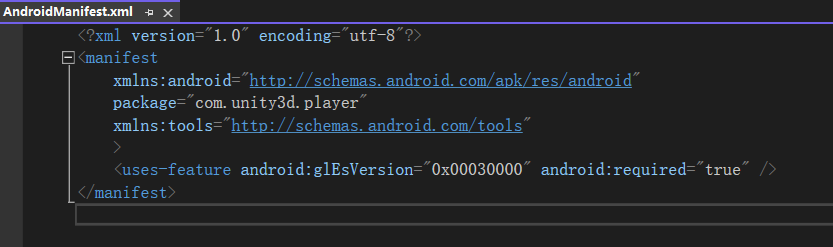
Edit AndroidManifest.xml:
- Remove the entire `
` block. - Add the following line inside the `
` section:
<uses-feature android:glEsVersion="0x00030000" android:required="true"/>*(Figure 7 / Figure 8)*
Edit LauncherManifest.xml:
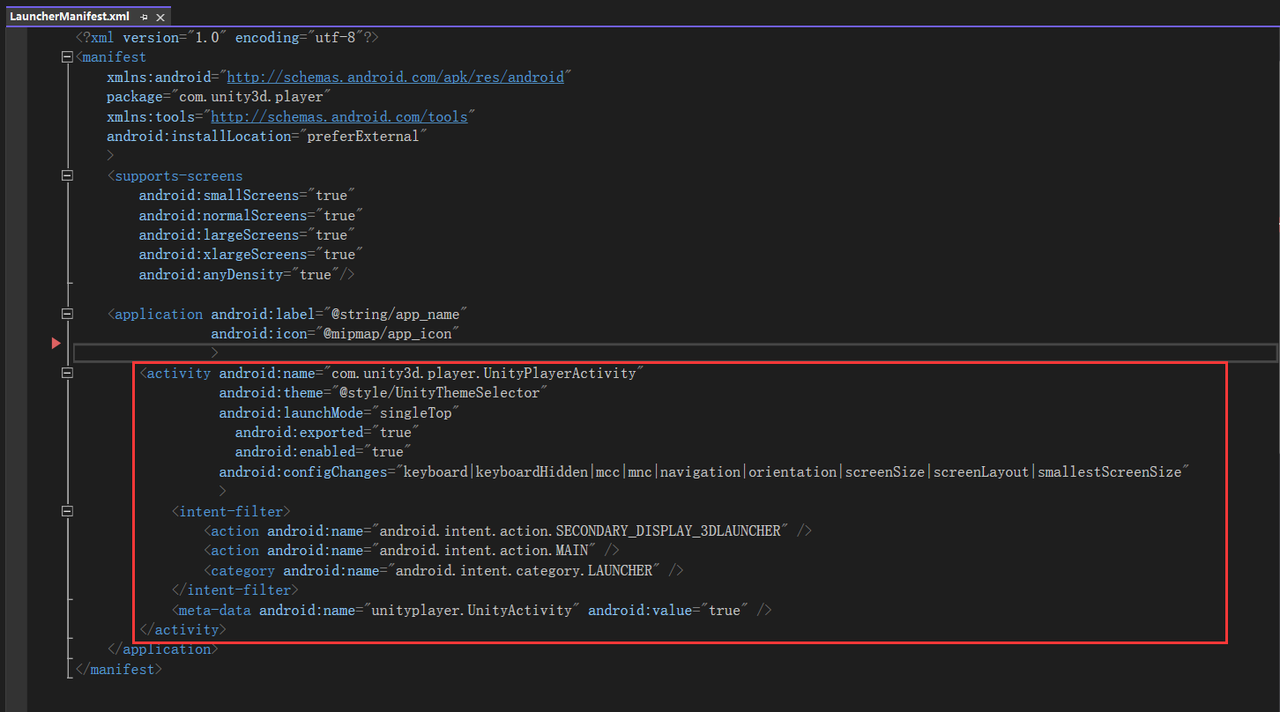
- Add an activity entry inside the `
` tag and configure the required attributes. *(Figure 9)*
Configure Graphics APIs
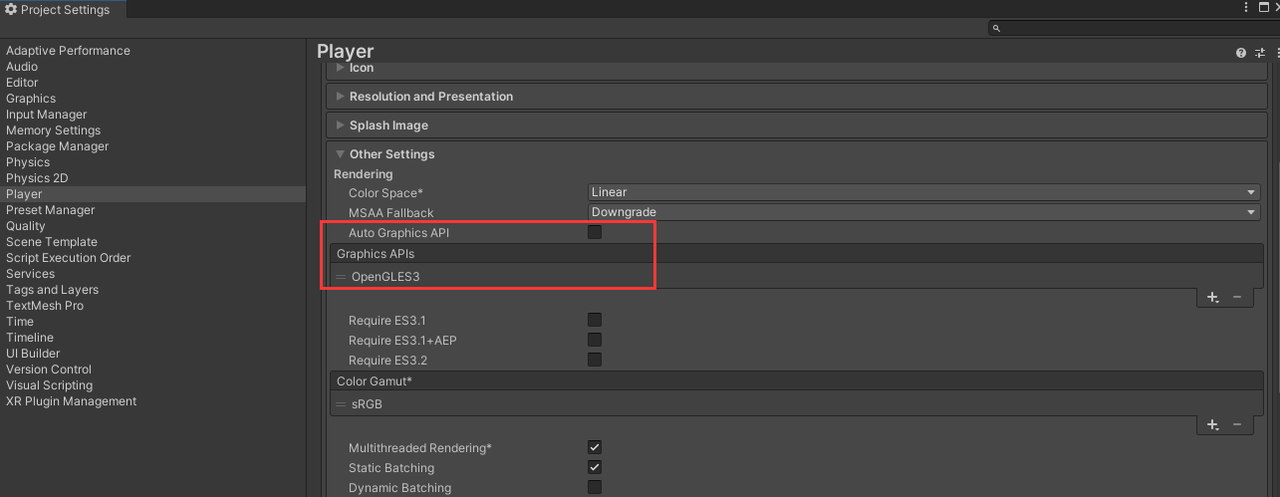
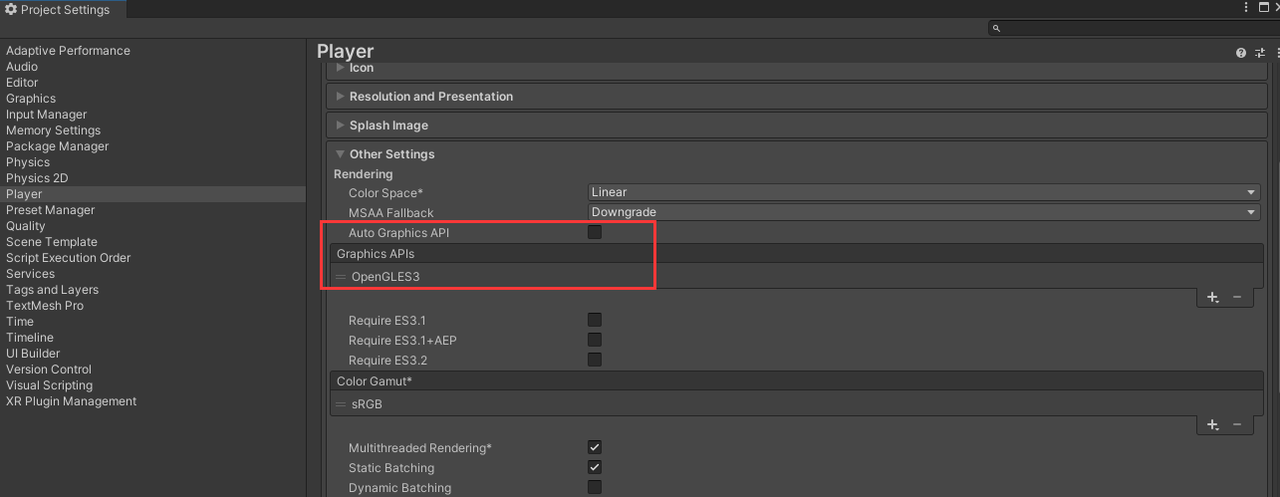
Disable Auto Graphics API, remove Vulkan, and keep OpenGLES3 only.
Minimum API Level
Set the Minimum API Level to API Level 34.

XR Configuration
Disable Initialize XR on Startup and enable Dp Loader.
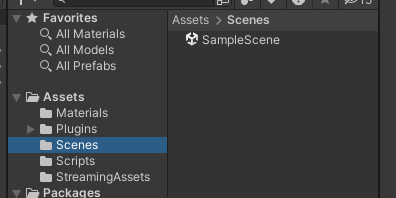
Select the Scene to Build
In the Assets folder, select the scene you want to compile and include it in the build.
Install the Generated APK on the Device
4. Core Features
One-Click Integration with Multiple Display Devices
The INAIR SDK enables seamless integration with the INAIR Pod spatial computing host, supporting external display devices such as TVs, projectors, and third-party AR glasses.
Through a unified interface, developers can render spatial content across different display devices with automatic adaptation, allowing applications to easily support multiple display environments.
Development Workflow
- Create a GameObject in the 3D scene, and attach the `DpUnityService` script to it.
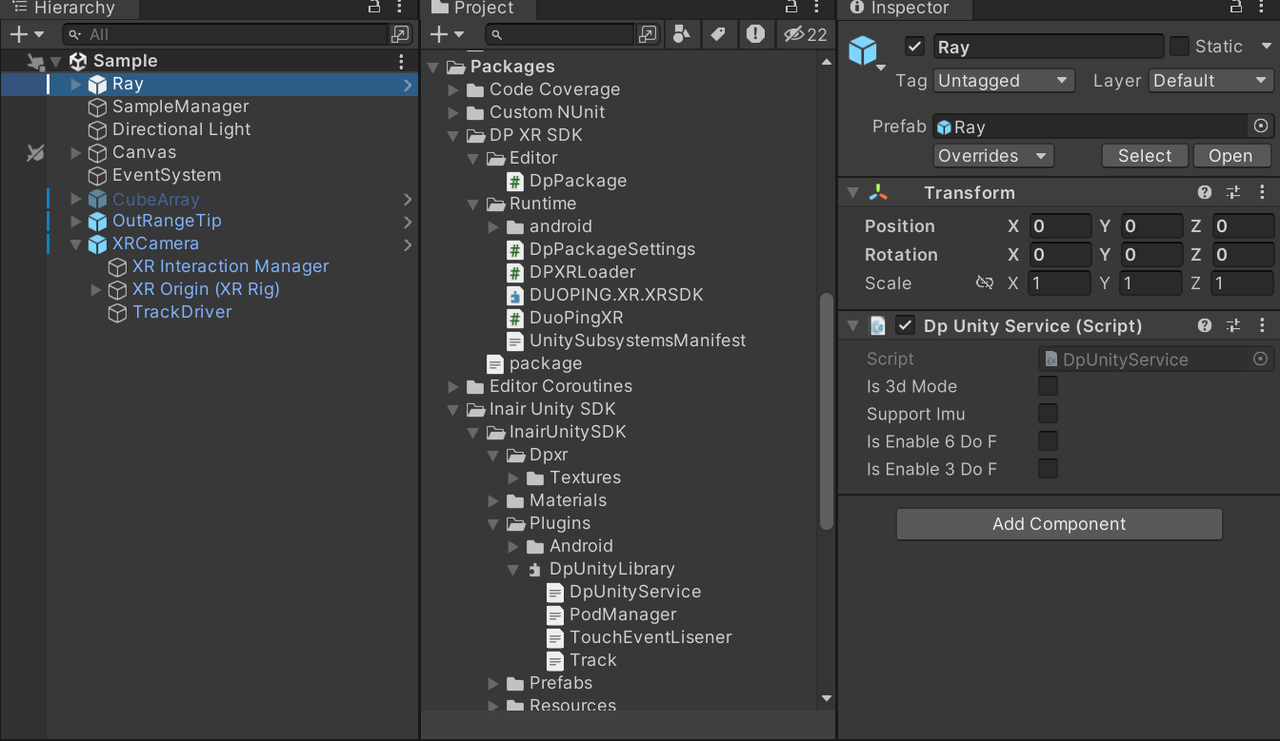
- Set the execution order for the `DpUnityService` script.
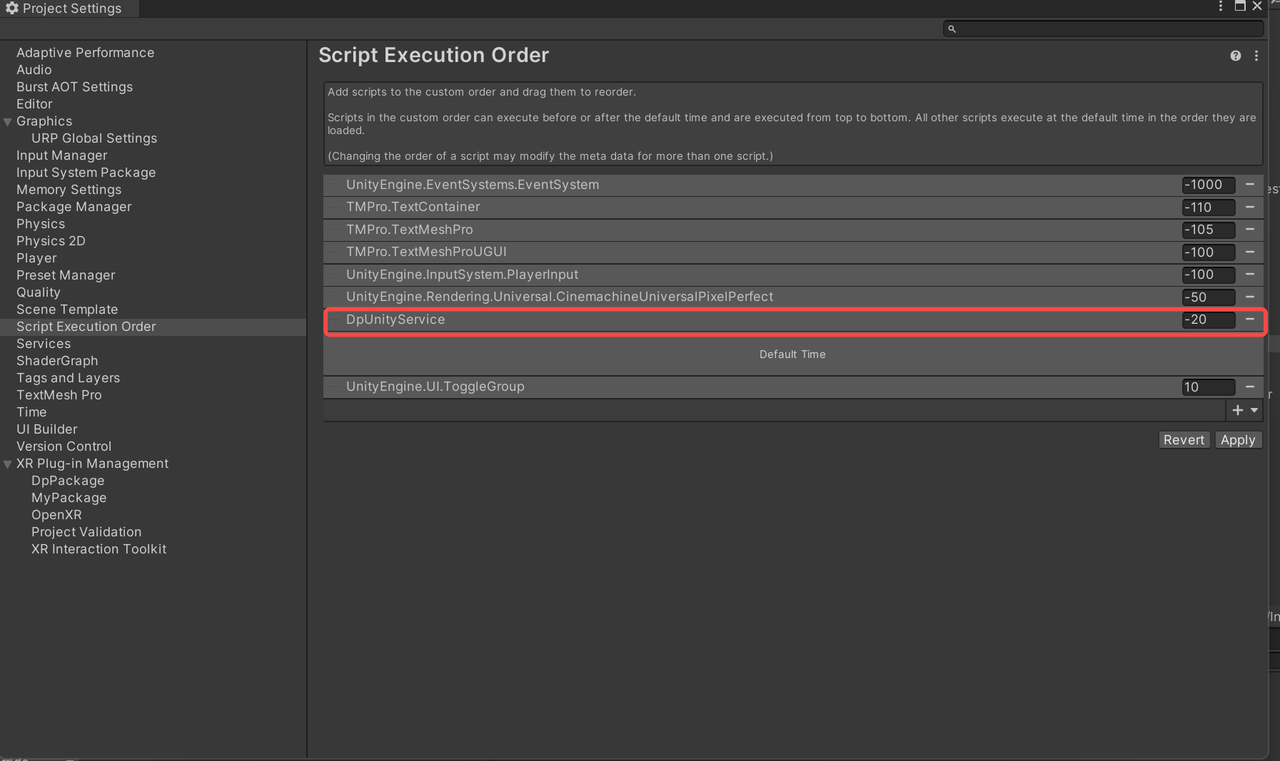
- Create another GameObject and attach the `DuopingXR` script to enable XR support.
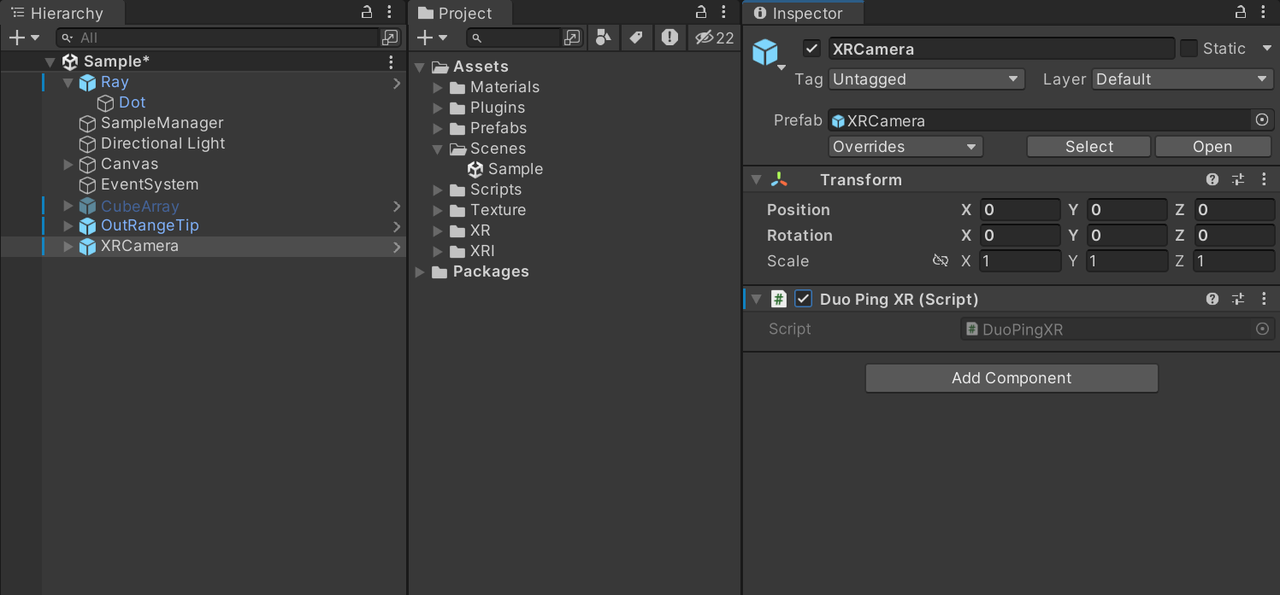
- Build the project and generate the APK, then install the APK on the INAIR Pod to verify the experience.
AR Device Head Tracking
The INAIR SDK supports 3DoF / 6DoF head tracking for AR devices. With INAIR's proprietary follow algorithm, virtual content can achieve stable spatial anchoring and smooth head-following behavior, ensuring a stable and immersive spatial interaction experience.
Development Workflow
- Create a script that inherits from PodManager.
public class DpSample : PodManager
{
    //声明PodManager实例
    public static PodManager podManagerImpl;

    private void Awake()
    {
        //给PodManager实例赋值
        podManagerImpl = this;
    }

    private void OnEnable()
    {
        base.OnEnable();
        InitPodImu();
    }
    private void OnDisable()
    {
        base.OnDisable();
        ReleasePodImu();
    }
    void Update()
    {
        base.Update();
    }
}- Call Methods through the `podManagerImpl` Instance
//开启随动模式
DpSample.podManagerImpl.OpenFllowHead(true);
//退出随动模式
DpSample.podManagerImpl.OpenFllowHead(false)- Get the Current Head Tracking Mode
//获取是否是6DoF环境
bool is_6dof = DpUnityService.Instance.IsEnable6DoF;
//获取是否是3DoF环境
bool is_3dof = DpUnityService.Instance.IsEnable3DoF;
//获取是否是0DoF环境,不支持imu即为0DoF
bool is_support_imu = DpUnityService.Instance.supportImu;
//获取是否是3D模式
bool is_3d= DpUnityService.Instance.Is3dMode;
Pod Device Pose Tracking
The INAIR SDK supports gyroscope-based pose tracking for the INAIR Pod.Developers can use real-time device orientation changes to control ray direction, and the SDK also includes built-in motion events such as shake detection, making it easier to implement spatial pointing and shortcut gesture interactions.
Development Workflow
- Key Methods
//开启Pod主机imu接收
podManager.InitPodImu();
//停止Pod主机imu接收
podManager.ReleasePodImu();
//获取Pod主机当前四元数姿态
Quaternion q_podRotation = podManager.GetPodImu();- In the `Update()` method, retrieve the Pod pose and apply it to the ray.
class DpSample : PodManager
{
    ...
    public void Update()
    {
        if (Application.platform == RuntimePlatform.Android)
        {
            //获取Pod主机姿态四元数
            q_podRotation = podManager.GetPodImu();
            //将Pod姿态设置给射线
            ray.transform.localRotation = q_podRotation;
        }
    }
    //Pod主机摇一摇事件回调事件注册
    public override void onShakeEvent(bool start)
    {
        //触发摇一摇,进入shake状态触发
        if (start)
        {
            //todo
        }
        else
        {
            //摇一摇状态结束,退出shake状态
            //todo
        }
    }
    ...
}
Support for Multiple Input Devices
The INAIR SDK supports multiple input methods on the INAIR Pod, including:
- Pod touchscreen
- Physical buttons
- Mouse
- Bluetooth keyboard
Developers can implement custom input event handling logic to support a wide range of interaction scenarios.
Development Workflow
- Use a custom launcher Gradle template to add the required dependency to the project.
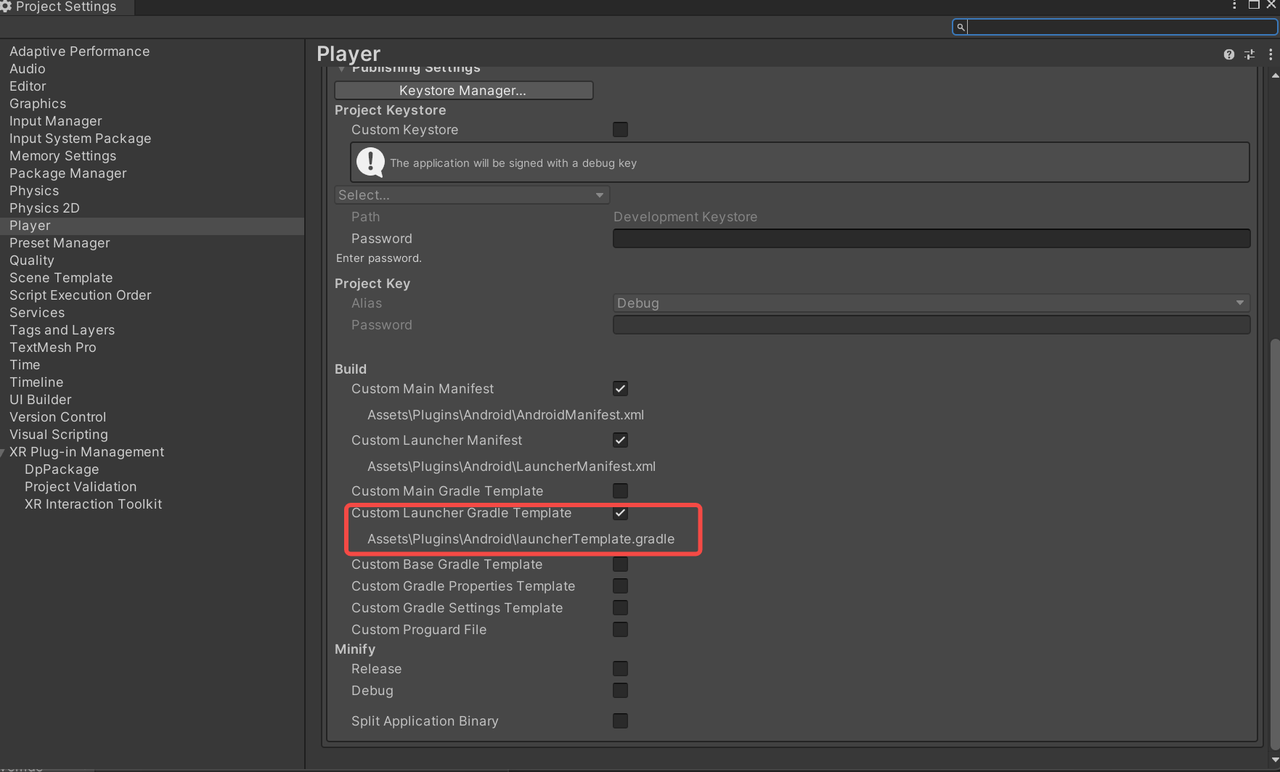
dependencies {
    //依赖包中有kotlin实现,需要添加此依赖
    implementation "org.jetbrains.kotlin:kotlin-stdlib:1.9.22"
}- Create a Script that Inherits from `PodManager`
class DpSample : PodManager
{

}
- Override the relevant callback methods in `PodManager` to handle custom input events.
    //返回手势事件
    public override void onBackSwipeEvent()
    {
    }
    //Pod触摸屏/蓝牙键盘触摸板长按事件
    public override void onLongPressEvent()
    {
    }
    /**
     * 鼠标移动
     * @param deltaX x轴坐标移动差值
     * @param deltaY y轴坐标移动差值
     * @param buttonState 当前按下的button
     */
    public override void onMouseEvent(float deltaX, float deltaY, int buttonState, int deviceType)
    {
    }
    /**
     * 鼠标滑轮滚动事件
     * @param vScroll 滚轮轮动距离,竖直方向
     * @param hScroll 滚轮轮动距离,水平方向
     * @param buttonState 当前按下的button
     */
    public override void onMouseWheelScroll(float vScroll, float hScroll, int buttonState)
    {
    }
    //单击事件
    public override void onSingleTapEvent()
    {
    }
    //左滑
    public override void onSwipeLeftEvent()
    {
    }
    //右滑
    public override void onSwipeRightEvent()
    {
    }
    //触摸事件
    public override void OnTouchEvent(int action, float x, float y, int deviceType)
    {
    }
    //注册MouseEventProxy中的自定义事件处理
    //public static Action<int, float, float> DispatchTouchEvent;
    //public static Action<int> OnTouchStateChanged;
    //public static Action<float> OnBackJourneyProgressChanged;
    //public static Action<float> OnWindowZoomJourneyProgressChanged;
    //public static Action<bool> OnBackGestureEnd;
    //public static Action<int, float> OnScaleProgressChanged;
    public void DispatchTouchEvent()
    {
        MouseEventProxy.DispatchTouchEvent += (action, dx, dy) =>
        {
            switch (action)
            {
                case MouseEventProxy.ACTION_DOWN:
                    onFingerActionDown();
                    break;
                case MouseEventProxy.ACTION_MOVE:
                    onFingerActionMove(dx, dy);
                    break;
                case MouseEventProxy.ACTION_UP:
                    onFingerActionUp();
                    break;
                case MouseEventProxy.ACTION_CANCEL:
                    onFingerActionCancel();
                    break;
                default:
                    break;
            }
        };
    }
5. API Reference
DpUnityService
`DpUnityService` is a singleton class that inherits from `MonoBehaviour`. It is responsible for handling device-related system configurations, including:
- Device initialization
- Display configuration
- 2D / 3D mode switching
- IMU feature management
The class follows the Singleton pattern and can be accessed globally via the `Instance` property.
Public Properties
public static DpUnityService Instance
- Description: Singleton instance of `DpUnityService`, used for global access.
public static Action<bool> Mode3DConfigAction
- Description: Callback for 3D mode configuration.
- Parameter: `bool` — indicates whether 3D mode is enabled.
public static Action DeviceInitFailedAction
- Description: Callback triggered when device initialization fails.
public static Action DeviceConfigChangedAction
- Description: Callback triggered when device configuration changes (e.g., refresh rate, resolution, or connected device changes).
public bool Is3dMode
- Description: Indicates whether the device is currently in 3D mode.
public bool supportImu
- Description: Indicates whether the device supports IMU functionality.
public bool IsEnable6DoF
- Description: Indicates whether 6DoF is enabled.
public bool IsEnable3DoF
- Description: Indicates whether 3DoF is enabled.
PodManager
`PodManager` is an abstract class that inherits from `TouchEventLisener`. It is mainly used for managing Pod IMU data and handling related events.
This class must be inherited, and the `onShakeEvent` method must be implemented by subclasses.
Public Properties
public Quaternion offsetCameraRotation
- Description: Camera rotation offset used for compensation during head tracking.
Public Methods
public void InitPodImu()
- Description: Initializes the Pod IMU functionality.
public void ReleasePodImu()
- Description: Releases Pod IMU resources.
public Quaternion GetPodImu()
- Description: Retrieves the current IMU quaternion of the Pod device.
- Returns: Quaternion representing the current device orientation.
public void OpenFllowHead(bool open)
- Parameters:
- `open (bool)` — `true` to enable head-follow mode, `false` to disable
- Description: Controls head-follow behavior.
- Behavior:
- When enabled: sets rotation threshold to `1` and enables head tracking
- When disabled: disables head tracking and sets threshold to `0`
Abstract Methods
void onShakeEvent(bool start)
- Parameters:
- `start (bool)` — `true` when shake starts, `false` when shake ends
- Description: Callback for shake events. Must be implemented by subclasses.
Protected Methods
public static extern void SetRotatingThreshold(float data)
- Parameters:
- `data (float)` — `0` disables follow mode, `1` enables follow mode
- Description: Sets the rotation threshold to control head-follow behavior.
public static extern void GetFollowPose(float[] buf)
- Parameters:
- `buf (float[])` — buffer to store pose data
- Description: Retrieves follow-mode pose data.
public static extern bool GetQuickCorrection()
- Description: Gets the status of quick calibration.
- Returns: Whether quick calibration is available.
Track
`Track` is a singleton class that inherits from `MonoBehaviour`. It is responsible for managing head-follow and hover (anchored) behaviors, synchronizing virtual objects with head movement.
The class follows the Singleton pattern and can be accessed via `Instance`.
Public Properties
public static Track Instance
- Description: Singleton instance of `Track` for global access.
public Transform head
- Description: Head transform used to track position and rotation.
public bool followHead
- Description: Indicates whether head-follow mode is enabled.
Public Methods
public void enableFollowHead(bool enable)
- Parameters:
- `enable (bool)` — `true` to enable follow mode, `false` to disable
- Description: Controls head-follow behavior.
- Behavior:
- When enabled: Uses INAIR's proprietary follow algorithm for smooth head tracking
- When disabled: Uses INAIR's hover algorithm to anchor content in space
public void blockZAxis(bool block)
- Parameters:
- `block (bool)` — `true` to lock Z-axis rotation, `false` to unlock
- Description: Controls whether Z-axis rotation is applied.
- Behavior:
- When locked: Ignores Z-axis rotation
- When unlocked: Applies full head rotation
TouchEventListener
`TouchEventListener` is an abstract class that inherits from `MonoBehaviour`. It is used to handle touch, gesture, mouse, and device events.
Subclasses must implement its abstract methods to process specific interactions.
Public Constants
public const int ACTION_DOWN = 0;
- Description: Indicates a touch press or mouse button down event.
public const int ACTION_UP = 1;
- Description: Indicates a touch release or mouse button up event.
public const int ACTION_MOVE = 2;
- Description: Indicates a touch or mouse move event.
public const int ACTION_CANCEL = 3;
- Description: Indicates that the input event has been canceled.
Public Methods
public void OnEnable()
- Description: Unity lifecycle method called when the object is enabled.
- Function: Registers input and device event listeners.
public void OnDisable()
- Description: Unity lifecycle method called when the object is disabled.
- Function: Unregisters all input and device event listeners.
Abstract Methods
public abstract void OnTouchEvent(int action, float x, float y, int deviceType);
- Parameters:
- `action (int)`: Touch action type (ACTION_DOWN, ACTION_UP, ACTION_MOVE, ACTION_CANCEL)
- `x (float)`: Horizontal coordinate
- `y (float)`: Vertical coordinate
- `deviceType (int)`: Device type
- Description: Handles touch input events.
public abstract void onLongPressEvent();
- Description: Handles long press events.
public abstract void onSingleTapEvent();
- Description: Handles single tap events.
public abstract void onSwipeLeftEvent();
- Description: Handles swipe left gestures.
public abstract void onSwipeRightEvent();
- Description: Handles swipe right gestures.
public abstract void onBackSwipeEvent();
- Description: Handles back swipe gesture events.
public abstract void onBackSwipeEndEvent(bool finish);
- Parameters:
- `finish (bool)`: `true` if the gesture is completed, `false` otherwise
- Description: Handles the end of a back swipe gesture.
public abstract void onRecenter();
- Description: Handles view recentering (can be triggered by double-tapping the left temple of the glasses).
public abstract void onGlassStatusChanged(bool glassOn);
- Parameters:
- `glassOn (bool)`: `true` if the display is on, `false` if it is off
- Description: Handles changes in glasses display status.
public abstract void onCursorAutoCalibrate();
- Description: Handles automatic cursor calibration events.
public abstract void onCursorHandCalibrateStart();
- Description: Handles the start of manual cursor calibration.
public abstract void onCursorHandCalibrateEnd(bool timeout);
- Parameters:
- `timeout (bool)`: `true` if calibration timed out, `false` if completed successfully
- Description: Handles the end of manual cursor calibration.
public abstract void onMouseEvent(float deltaX, float deltaY, int buttonState, int deviceType);
- Parameters:
- `deltaX (float)`: Movement along the X-axis
- `deltaY (float)`: Movement along the Y-axis
- `buttonState (int)`: Mouse button state
- `deviceType (int)`: Device type
- Description: Handles mouse movement events.
public abstract void onMouseWheelScroll(float vScroll, float hScroll, int buttonState);
- Parameters:
- `vScroll (float)`: Vertical scroll distance
- `hScroll (float)`: Horizontal scroll distance
- `buttonState (int)`: Mouse button state
- Description: Handles mouse wheel scroll events.
public abstract void onBackSwipeProgressChange(float progress, int deviceType);
- Parameters:
- `progress (float)`: Gesture progress (range: 0–1)
- `deviceType (int)`: Device type
- Description: Handles back swipe gesture progress updates.
MouseEventProxy
`MouseEventProxy` inherits from `AndroidJavaProxy` and is responsible for handling input events from the Android layer, including:
- Touch events
- Mouse events
- Gesture events
Before using, call:
setMouseEventCallback();
When no longer needed:
removeMouseEventCallback();
Public Constants
Event Type Constants
public const int ACTION_DOWN = 0;
- Description: Indicates a touch press or mouse button down event.
public const int ACTION_UP = 1;
- Description: Indicates a touch release or mouse button up event.
public const int ACTION_MOVE = 2;
- Description: Indicates a touch or mouse move event.
public const int ACTION_CANCEL = 3;
- Description: Indicates that a touch event has been canceled.
public const int ACTION_KEY_CLICK = 100;
- Description: Indicates a key click event.
public const int KEY_CODE_BACK = 4;
- Description: Indicates a back button event.
public const int ACTION_HOVER_MOVE = 7;
- Description: Indicates a mouse hover movement event.
Touch State Constants
public const int TOUCH_STATE_IDLE = 0;
- Description: Indicates the idle state (no active touch interaction).
public const int TOUCH_STATE_DOWN = 1;
- Description: Indicates that a touch press has occurred.
public const int TOUCH_STATE_DRAGGABLE = 2;
- Description: Indicates that the touch is in a draggable state.
public const int TOUCH_STATE_LONGPRESS = 3;
- Description: Indicates a long press gesture.
public const int TOUCH_STATE_SINGLE_TAP_UP = 4;
- Description: Indicates a single tap release event.
public const int TOUCH_STATE_DOUBLE_TAP_DOWN = 5;
- Description: Indicates the start of a double tap (second tap press).
public const int TOUCH_STATE_DOUBLE_TAP_UP = 6;
- Description: Indicates the end of a double tap (second tap release).
public const int TOUCH_STATE_SCALABLE = 7;
- Description: Indicates a scalable (pinch/zoom) gesture state.
public const int TOUCH_STATE_SCALE_END = 8;
- Description: Indicates the end of a scaling (pinch/zoom) gesture.
Mouse Button Constants
public const int MOUSE_BUTTON_LEFT = 1;
- Description: Represents the left mouse button.
public const int MOUSE_BUTTON_RIGHT = 2;
- Description: Represents the right mouse button.
public const int MOUSE_BUTTON_MIDDLE = 4;
- Description: Represents the middle mouse button.
Device Type Constants
public const int DEVICE_TYPE_TOUCHSCREEN = 4098;
- Description: Represents a touchscreen device.
public const int DEVICE_TYPE_MOUSE = 8194;
- Description: Represents a mouse device.
public const int DEVICE_TYPE_TOUCHPAD = 1056778;
- Description: Represents a touchpad device.
public const int DEVICE_TYPE_RAY = 1;
- Description: Represents a ray-based input device (e.g., spatial pointer).
Public Static Properties
public static bool touchDown;
- Description: Indicates whether a touch press or mouse button press is currently active.
public static bool touchMove;
- Description: Indicates whether a touch or mouse movement is currently occurring.
public static float touchMoveX;
- Description: Accumulated movement distance along the X-axis for touch or mouse input.
public static float touchMoveY;
- Description: Accumulated movement distance along the Y-axis for touch or mouse input.
public static float deltaMoveX;
- Description: Most recent movement delta along the X-axis.
public static float deltaMoveY;
- Description: Most recent movement delta along the Y-axis.
public static int moveType;
- Description: Indicates the current movement type.
public static volatile bool interceptBackGesture;
- Description: Indicates whether the back gesture should be intercepted.
public static volatile bool interceptScaleGesture;
- Description: Indicates whether the scale (pinch/zoom) gesture should be intercepted.
Static Events
public static Action<int, float, float> DispatchTouchEvent;
- Description: Dispatches touch events.
- Parameters:
- `int` — action type
- `float` — X coordinate
- `float` — Y coordinate
public static Action<int> OnTouchStateChanged;
- Description: Triggered when the touch state changes.
- Parameters:
- `int` — touch state
public static Action<float> OnBackJourneyProgressChanged;
- Description: Triggered when the back gesture progress changes.
- Parameters:
- `float` — progress value (0–1)
public static Action<float> OnWindowZoomJourneyProgressChanged;
- Description: Triggered when the window zoom gesture progress changes.
- Parameters:
- `float` — progress value
public static Action<bool> OnBackGestureEnd;
- Description: Triggered when the back gesture ends.
- Parameters:
- `bool` — whether the gesture is completed
public static Action<int, float> OnScaleProgressChanged;
- Description: Triggered during scaling (pinch/zoom) gesture updates.
- Parameters:
- `int` — state
- `float` — offset value
public static Action<int, float, float, int> OnMouseMoveEvent;
- Description: Triggered when the mouse moves.
- Parameters:
- `int` — action type
- `float` — delta X
- `float` — delta Y
- `int` — button state
public static Action<float, float, int> OnMouseScrollEvent;
- Description: Triggered when the mouse wheel scrolls.
- Parameters:
- `float` — vertical scroll
- `float` — horizontal scroll
- `int` — button state
public static Action<int, bool, int> OnMouseButtonDownUpEvent;
- Description: Triggered when a mouse button is pressed or released.
- Parameters:
- `int` — button
- `bool` — pressed state
- `int` — button state
public static Action<float, float, int, int> OnMouseEvent;
- Description: General mouse event callback.
- Parameters:
- `float` — delta X
- `float` — delta Y
- `int` — button state
- `int` — device type
public static Action<bool> OnCursorPressStateChanged;
- Description: Triggered when the cursor press state changes.
- Parameters:
- `bool` — whether the cursor is pressed
Custom Event Callbacks
public static event OnTouchEvent touchEvent;
- Description: Touch event callback.
- Parameters: action, X, Y, device type
public static event onLongPressEvent longPressEvent;
- Description: Long press event.
public static event onSingleTapEvent singleTapEvent;
- Description: Single tap event.
public static event onDoubleTapEvent doubleTapEvent;
- Description: Double tap event.
public static event onSwipeLeftEvent swipeLeftEvent;
- Description: Swipe left event.
public static event onSwipeRightEvent swipeRightEvent;
- Description: Swipe right event.
public static event onBackSwipeEvent backSwipeEvent;
- Description: Back swipe gesture event.
public static event onBackSwipeEndEvent backSwipeEndEvent;
- Description: Back swipe gesture end event.
- Parameters: whether the gesture is completed
public static event onCursorAutoCalibrateEvent cursorAutoCalibrateEvent;
- Description: Cursor auto calibration event.
public static event onCursorHandCalibrateStartEvent cursorHandCalibrateStartEvent;
- Description: Cursor manual calibration start event.
public static event onCursorHandCalibrateEndEvent cursorHandCalibrateEndEvent;
- Description: Cursor manual calibration end event.
- Parameters: whether timeout occurred
public static event onBackSwipeProgressChange BackSwipeProgressChangeEvent;
- Description: Back gesture progress update event.
- Parameters: progress value and device type
Public Methods
public void setMouseEventCallback();
- Description: Registers input event callbacks for all supported input device types.
- Function: Registers input callbacks from the Android layer.
public void removeMouseEventCallback();
- Description: Unregisters all input event callbacks.
- Function: Removes input callbacks from the Android layer.
public static void SetInterceptBackGesture(bool intercept);
- Parameters:
- `intercept (bool)` — `true` to intercept the back gesture, `false` to allow it
- Description: Configures whether the back gesture should be intercepted.
- Function: Calls the Android layer to set the back gesture interception behavior.
public static void SetInterceptScaleGesture(bool intercept);
- Parameters:
- `intercept (bool)` — `true` to intercept the scale gesture, `false` to allow it
- Description: Configures whether the scale (pinch/zoom) gesture should be intercepted.
- Function: Updates the internal state and calls the Android layer to apply the setting.
6. Common Issues and Solutions
Connection Issues
- Problem 1: …
7. Technical Support
- Developer Cooperation Email: yuzijian@inairspace.com sunxiangpeng@inairspace.com
- When making inquiries, please indicate: company name, contact person, contact information, industry/scenario, and development content.